
These five free automations can label receipts in Gmail, remind you about recurring chores, or send form responses to a spreadsheet. Pick one task you already repeat and test the setup before you rely on it.
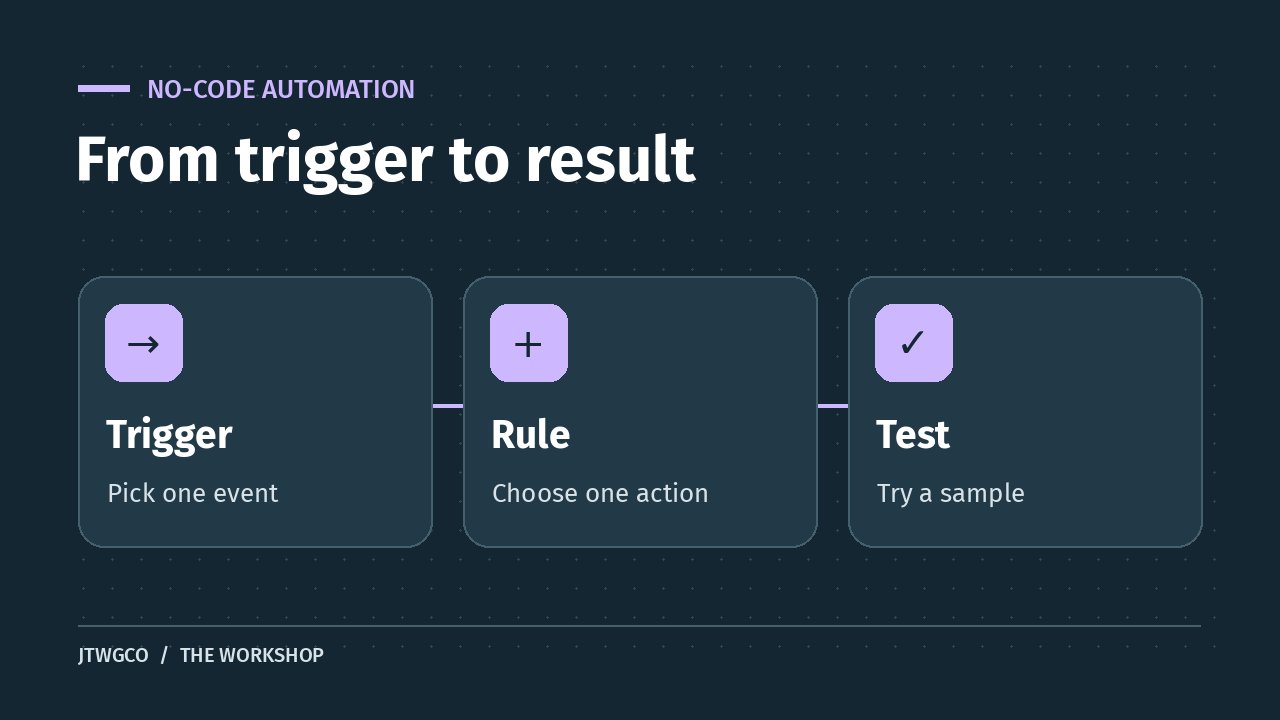
Each example has a trigger and an action. The trigger is what happens first, such as a message arriving. The action is what the tool does next, such as adding a label. Choose one example that fits your week and try it with sample data before you rely on it.
Free automations for email and reminders
1. Put receipts under one Gmail label
Use this when receipts from the same shop regularly get buried. The trigger is a new message that matches your filter. The action is adding a label called Receipts so the message is easier to find at tax time or when you need to make a return.
On a computer, open Gmail’s search options. Enter the sender address from a recent receipt and a distinctive word or phrase from the subject. Run the search and scan the results. If it catches shipping alerts or ads you want to keep separate, tighten the search before creating the filter.
Choose Apply the label and pick Receipts. Keep the messages visible in your inbox during the trial. Check the next receipt and confirm it appears under the label. If the rule catches too much, edit or delete it in Settings under Filters and Blocked Addresses. Follow Gmail’s filter setup guide for the full controls.
2. Put a repeating task on your calendar
Suppose you forget to check your freezer before shopping. Create a task called Check freezer before grocery run and set it to repeat weekly in Google Tasks or Google Calendar. Pick a time when you can actually open the freezer. The useful automation is the recurring prompt. You still make the list yourself.
Try a first occurrence when you are available. Confirm the task shows up and check whether your phone actually notifies you if you expect a notification. App and device settings affect what you see. If the reminder always arrives while you are busy, change the time before you add more tasks.
Open a task in the series to edit the repeat pattern. When deleting it, check whether you’re removing only that occurrence or the series. Google’s repeating tasks guide covers the controls and notes that shared tasks and subtasks can’t repeat.
Turn form entries into spreadsheet rows
3. Log requests with Google Forms and Sheets
Use this when you keep copying the same details from a message into a spreadsheet. Say your household keeps a running list of groceries to pick up. Make a form with three fields, Item, Quantity, and Notes. Keep the fields short enough for someone to fill out while standing in the kitchen.
In the form’s Responses tab, select a response destination and choose a new or existing spreadsheet. Share the form with the people who need it. Each submission will appear in the linked spreadsheet. Use a separate tab for sorting, calculations, or a weekly summary so you have a clean record of the original entries.
Send two fake submissions, including one from a second account if other people will use it. Verify that both rows appear and that respondents cannot access the sheet unless you intend to share it. Keep account numbers, health details, and passwords out of a casual form. Google’s Forms guide explains how to unlink the sheet and why you should check permissions on both files.
Set a phone routine you can test and turn off
4. Show a scheduled reminder with iPhone Shortcuts
Use an iPhone personal automation for a tiny reminder you want on a schedule. For example, create a shortcut with a Show Notification action that says Put library books by the door. Add a Time of Day trigger, choose the day and time, and select the option to run automatically if your version offers it.
Set the first run a few minutes ahead. Lock the phone and check whether the notification appears. If it doesn’t, check the shortcut’s locked-device permissions and the phone’s notification settings. Some actions require interaction even if the trigger can run automatically.
Once the test works, move the trigger to your preferred time. To stop it, open the shortcut’s automation and remove or disable the trigger. Use Apple’s Shortcuts automation guide if your controls look different.
5. Schedule Android Bedtime mode
Use Bedtime mode if you want your phone to change its display or reduce interruptions at night. On a compatible Android phone, open Settings and look under Digital Wellbeing for Bedtime mode. Choose a bedtime routine, set the days and times, and select the options you want. You can start with a dimmer display or grayscale if your device offers it.
Try it before relying on it overnight. If you enable Do Not Disturb, review who can reach you and test the calls and alarms you need. A shared or work phone may have settings that limit what you can change. See Google’s Digital Wellbeing guide for schedules and available controls.
Decide whether the rule earned its place
Write down the trigger, action, and where to switch it off. After a few runs, check whether it worked and how often you had to correct it. If a receipt filter saves a search every week, keep it. If a form creates more cleanup than it saves, simplify the fields or unlink the sheet.
For a shared process, write down who owns the rule and what to do if it stops working. Our sample procedure shows how a team can document repeatable work. If your task involves drafting or organizing messy information, see our guide to practical AI uses and choose which steps need human review.
Recheck the rule whenever you change email addresses, share a file with someone new, or replace your phone. A quick test can catch a broken trigger before the task slips through.