
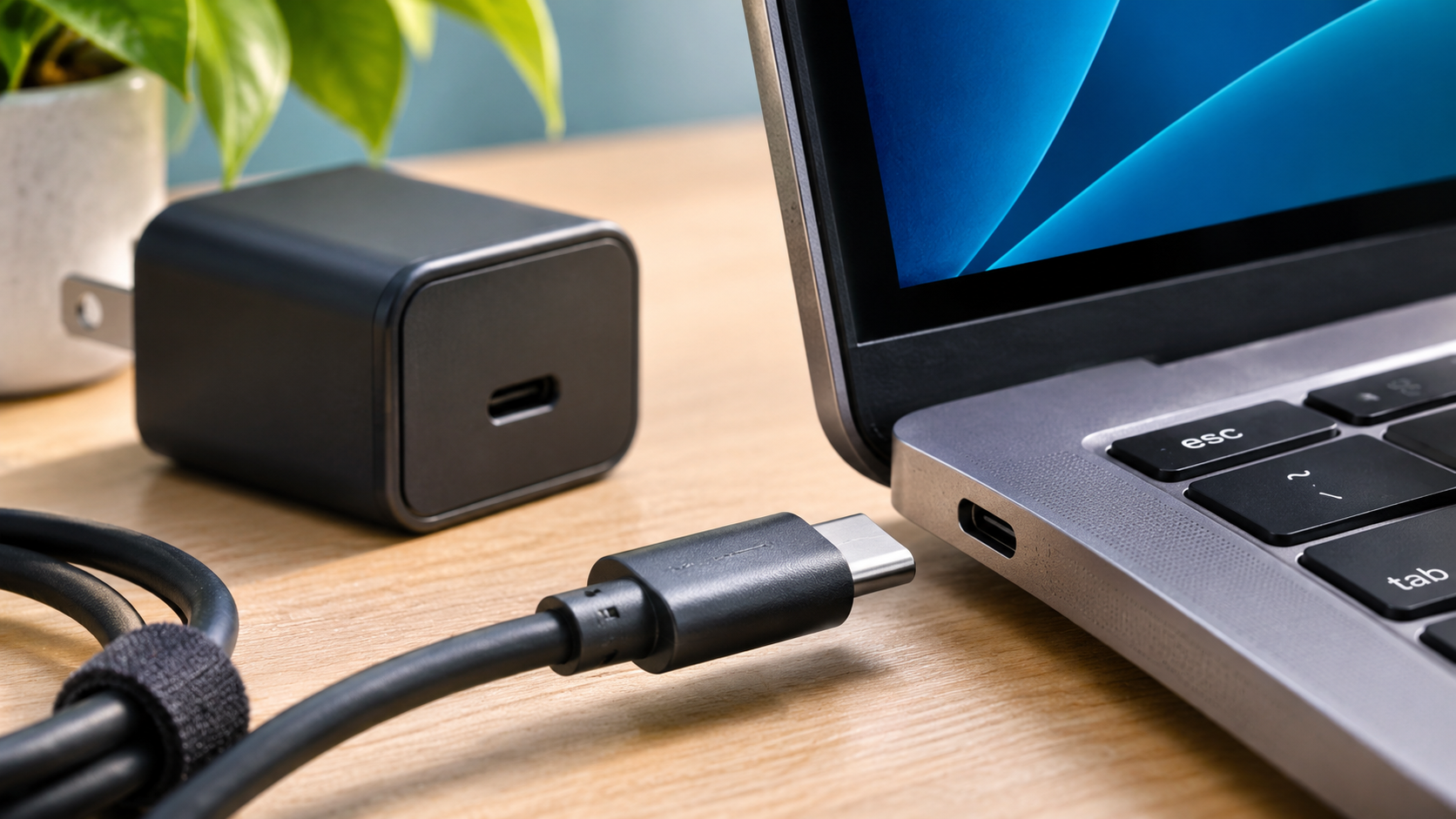
USB-C charging problems do not automatically mean your battery or charging port is broken. Start with a known-good outlet, the correct charging port, and a charger and cable rated for your device. Then isolate one part at a time. These eight checks can help you avoid buying a replacement you do not need.
Before changing settings or buying accessories, write down what you see: no charging symbol, a slow-charging message, a charge percentage that never rises, or power that cuts out when you move the plug. Those symptoms help you compare each test. Do not keep experimenting if you notice smoke, a burning smell, severe heat, or a damaged battery.
1. USB-C charging problems: Check the outlet first
Plug a known-working device into the same outlet. If you use a power strip, try a direct wall connection. Reseat the detachable power cord or plug on the adapter. Stop using any adapter that is cracked, scorched, smells unusual, or becomes dangerously hot. Do not open a charger to investigate it.
2. Use the right USB-C port
A USB-C-shaped socket does not guarantee charging support. On some laptops, only designated ports accept power; others support data or displays but not charging. Check the device manual and any charging symbol beside the port. Microsoft specifically identifies using the wrong USB-C port as a possible cause of a Windows laptop not charging.
3. Compare the charger rating with the device’s needs
Look at the laptop or phone maker’s power requirements and the charger’s output label. Wattage is voltage multiplied by current, but matching the printed wattage alone does not guarantee compatibility: supported USB Power Delivery profiles and device requirements also matter. A lower-powered compatible charger may charge slowly, fail under heavy use, or not charge the device at all. Prefer the original adapter or a manufacturer-approved compatible replacement.
For example, a laptop designed for a higher-power adapter might run light tasks from a smaller compatible charger yet slowly lose battery charge during a video call or game. That does not automatically mean the battery has failed. Check the manufacturer’s specifications for the exact model, including whether charging through USB-C is supported at all.
4. Swap the cable before blaming the charger
USB-C cables can look identical while supporting different power and data capabilities. Test with a known-good cable explicitly rated for the required power, not just any cable that fits. Check both ends for bent connectors, fraying, discoloration or heat damage. Replace damaged cables rather than trying to repair them. USB-IF’s certification guidance identifies cable power capability labels such as 60W and 240W; those labels describe cable capability, not a promise that every device will charge at that rate.
Try one controlled swap at a time. Keep the same outlet and charger, then change only the cable. Next, use the known-good cable with a different compatible charger. If you change the outlet, dock, cable and power adapter at once, you may get a working result without knowing which part caused the failure.
5. Bypass docks, hubs and adapters
Connect the charger directly to the device. A hub, monitor or dock may have its own power budget, and a pass-through port may not supply enough power for the laptop. If direct charging works, check the dock’s power specifications and the computer’s required input before replacing the computer’s charger.
6. Inspect the port without damaging it
Power the device down and unplug it first. Use a light to look for lint, debris, corrosion or bent parts. Do not poke metal tools into the port, pour cleaning liquid inside, or force a connector that does not seat properly. Follow the manufacturer’s cleaning instructions. Microsoft and Apple both identify debris in USB-C ports as a possible charging problem. If you see corrosion, melted plastic or bent contacts, stop and seek service.
A connector that feels loose or charges only when held at an angle can indicate damage to the plug or port. Avoid repeatedly wiggling it to make charging work. If the laptop case or trackpad is bulging, do not charge or test it further; read our swollen laptop battery safety guide before arranging professional help.
7. Separate charging problems from battery behavior
If the device charges when turned off but loses charge while running demanding software, its power draw may exceed what the adapter supplies. If the charge stops near a set percentage, check for battery-health or charging-limit features in the manufacturer’s settings. A charging icon alone does not prove the battery is gaining charge; compare battery percentage over time under similar conditions.
8. Check software guidance, then decide whether service is needed
Restart the device and check the manufacturer’s support page for applicable firmware, operating-system or battery-health guidance. Do not install random driver-updater utilities. On Windows, a USB-C warning may identify a slow charger or unsupported connection; Microsoft’s USB-C troubleshooting page explains these notifications. For a Mac, Apple’s power-adapter guide recommends checking the outlet, adapter, port and software updates. If multiple known-compatible chargers and cables fail on the same port, arrange professional diagnosis rather than repeatedly buying accessories.
USB-C charging problems: A quick decision guide
GO: A known-compatible charger and cable work reliably; label the working pair so you can find it again.
INVESTIGATE: Charging is intermittent, slow, or works only through one port. Check device specifications and isolate the cable, adapter and dock.
STOP AND GET HELP: You find heat damage, smoke, burning smells, corrosion or a loose, visibly damaged charging port. Disconnect power and have the equipment assessed.
Common USB-C charging problems and what they mean
Why does my laptop say it is plugged in but not charging?
First check whether a battery-protection feature is deliberately holding the charge level. Then confirm the adapter meets the laptop’s required power input. On a compatible but underpowered adapter, charging can be extremely slow or stop while the computer is busy. Check the manufacturer’s battery and charging settings before assuming a failed port.
Why does the same USB-C charger work on my phone but not my laptop?
Phones and laptops often require different amounts of power. The connector fits both, but the charger must negotiate a supported power level with each device. A phone charging normally proves the adapter supplies some power; it does not prove it can charge a particular laptop. Match the adapter, cable, port and device requirements.
Can USB-C charging problems come from the cable?
Yes. Some cables have a lower power rating than the device requires, while a worn or damaged cable may make an unreliable connection. Test a known-good cable with the necessary rating. Do not use a cable showing heat damage or exposed conductors, even if it occasionally works.
Should I reset my computer to fix USB-C charging?
Not as a first step. Test the physical power path first: outlet, correct port, charger, cable and dock. A normal restart and manufacturer-approved updates can make sense later. A factory reset is a major step with data-loss risks and is not justified by an unexplained charging issue alone.
What to check before buying a replacement
Write down the device’s exact model, required charging input, the charger’s supported output, and the cable’s rated power. Buy for those requirements, not just the connector shape or the highest advertised wattage. If the device is under warranty, check the manufacturer’s service options first.
Record the result before spending money
Use a small note to track which combinations worked. For instance: wall outlet A, original adapter, original cable: no charging; same outlet and adapter, known-good rated cable: charging normally. In that example, the cable becomes the likely suspect, although you should stop if any component is visibly damaged.
If the failure follows one port with several verified-compatible accessories, ask the manufacturer or a qualified repair shop about the port before ordering another charger. If a replacement is needed, choose one confirmed for your exact device rather than assuming the highest wattage or a USB-C connector guarantees compatibility.
Sources and further reading
Microsoft: Fix USB-C problems in Windows; Apple: If your USB-C power adapter is not charging your Mac; USB-IF: Cables and Connectors.