
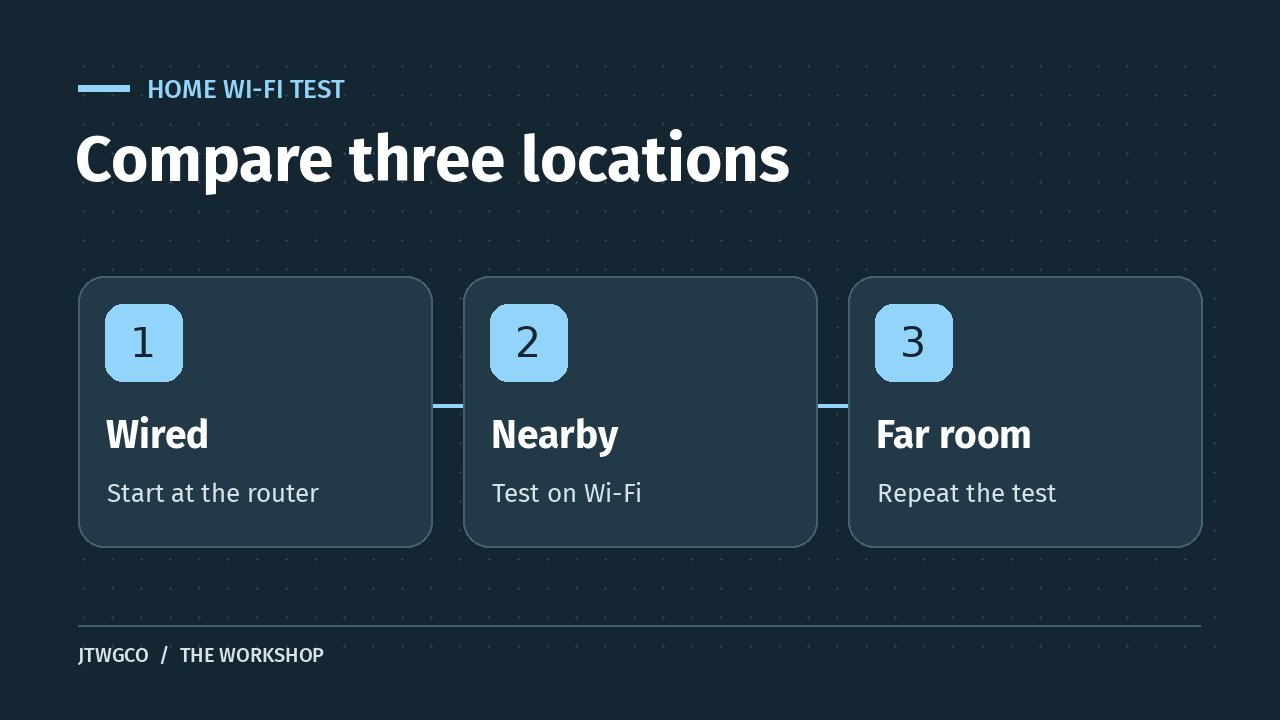
When you have slow home Wifi-Fi, run the same test near the router, in the room where you notice trouble, and over Ethernet if you can. A fast wired result and a slow result in one room point toward a different fix than slow results across every device and connection.
Keep a note with the time, room, device, and test result. Change one thing at a time. If you restart the router, move it, and change several settings at once, you will have a hard time telling what helped.
Start with a baseline for slow home Wi-Fi
1. Find out whether the problem follows one app or device
Try a second site or app when the slowdown happens. Then test a second device in the same spot on the same Wifi-Fi network. Make sure your phone is actually using Wifi-Fi and hasn’t switched to mobile data. If just one service struggles, check its status before changing anything on your network.
If the problem follows one device, check whether it is downloading updates or using a VPN. Restart it and retest. On a work-managed device, keep required settings in place and ask IT about the result. The goal is to learn which device or app has the issue before you touch the router.
2. Compare Ethernet, nearby Wifi-Fi, and the problem room
Use the same laptop and speed-test service for all three tests if possible. Start with Ethernet connected to a LAN port on the router and turn off Wifi-Fi on the laptop for that run. Then unplug Ethernet, turn Wifi-Fi back on, and run the test near the router. Finally, test from the problem room. Run each test twice when other devices are fairly quiet.
Record download, upload, and latency if the test reports them. Download and upload are how much data moves each second. Latency is how long a response takes. A video call can be choppy even if a download speed looks fine. If you have no Ethernet device, a router app’s built-in internet test can help distinguish the incoming connection from room coverage, when your model offers one. Google’s Nest Wifi testing guide explains that distinction.
See whether it depends on where or when you connect
3. Test a better spot for the router or mesh point
If the near test looks good and the far test drops, move the router to an open, higher spot closer to the rooms you use. Try the top of a shelf instead of inside a cabinet. Retest at the same desk or couch. If the router cannot move, test whether shifting your device a short distance makes a difference.
If you use mesh, put a wireless node between the main router and the weak room, where it still gets a strong connection. A node inside the dead zone may have a poor connection back to the router. Run your system’s mesh test if it offers one. Google’s mesh placement guide gives an example of how to check the links between points.
4. Separate interference from a busy household
Repeat the problem-room test once during the slowdown and once when the network is quiet. Pause a large backup, game download, or other heavy transfer you control and run the test again. If calls clear up as soon as an upload pauses, try moving the upload to a different time.
If Wifi-Fi struggles nearby while Ethernet stays fast, look at wireless settings and nearby interference. The 2.4 GHz band can be useful at a distance, but it is often crowded. Compatible devices may do better on 5 GHz nearer the router. Leave channel selection on automatic to start if the router supports it. Apple’s router settings guide explains channel selection and why narrower channels can help on 2.4 GHz.
Check the equipment and the connection into your home
5. Restart the network and repeat the baseline
Pick a time when a brief outage won’t interrupt anyone. Follow the manufacturer or provider’s restart instructions for your gateway, modem, or router. Wait for service to return before measuring again. A restart briefly turns equipment off and back on. A factory reset can erase settings, including the network name and password.
If speed improves briefly and then drops again, log how long the improvement lasted. A repeatable pattern is more useful than a single good test. Check for firmware updates using the router’s official app or your provider’s instructions.
6. Check the wired path before blaming the plan
If Ethernet is slow too, try a known-good cable and a different suitable LAN port. Check the rated speed of the router port, laptop adapter, and any switch in the path. A link that negotiates at 100 Mbps can limit your result even if your plan is faster. Avoid comparing a slower adapter’s result with the full speed of a faster plan.
Look for outage notices in your provider’s official app or website. Google’s slow internet troubleshooting guide covers cable and port limits, wireless congestion, and provider-side issues.
7. Use the pattern to pick the next step
- Good wired and nearby tests, poor far-room test. Work on placement and coverage first.
- Good wired result, poor Wifi-Fi on several devices nearby. Check the router’s wireless settings, interference, and firmware.
- Poor wired and wireless results across devices. After checking your cable and port, give your provider the times, speeds, equipment, and steps you tried.
- Slow only in one app or on one device. Start with that service, device, or its support team.
Keep a short log if the issue comes back
A useful note could read: Monday, 7:20 p.m., same laptop and test server, 310 Mbps wired, 285 Mbps near the router, and 28 Mbps in the back bedroom. These are example numbers. Your own pattern matters more than any target in the example.
If you work remotely, test from the desk where you will take calls. Keep that setup check separate from verifying the job itself. Our remote job offer verification guide covers that decision. For more practical checklists, browse The Workshop.